
Wacom Intuos Pro Large, Bluetooth Graphic Drawing Tablet with ProPen 3
4.3Editor score
Large 16:9 active area
ProPen 3 pressure and tilt
Ten customizable ExpressKeys
Bluetooth multi-computer switching
A tablet for CAD design must translate precise pen input into clean lines, editable geometry, and dependable on-screen control. Unlike a general-purpose tablet with a stylus, a strong CAD tablet benefits from pressure sensitivity, low-latency tracking, an active workspace, and compatibility with the software used to create technical drawings, plans, and models.
We compared all ten products by examining their drawing hardware, screen behavior, portability, operating requirements, pressure response, included accessories, and suitability for CAD-oriented work. The list includes screen-equipped pen displays, standalone drawing tablets, compact pen tablets, and broader tablets that can support sketching, markup, viewing, and light design work.
Each pick reveals what it contributes to a CAD toolkit, from low-cost pen input and precise pressure control to large displays and mobile workflows. Ratings reflect the supplied customer feedback, while practical trade-offs remain important. Current prices and availability change, so confirm the latest listing and software requirements before buying.
4.3Editor score

4.5Editor score

4.4Editor score
As an Amazon Associate we earn from qualifying purchases.
This side-by-side comparison highlights the main differences in display style, pen performance, portability, and computer dependence, helping CAD users identify the most practical option for their specific workflow.




The HUION Kamvas 13 (Gen 3) combines a reasonably large pen display with high-resolution pressure detection, calibrated color, and extensive control options. Its supplied rating of 4.5 places it among the strongest choices in this group, while the direct-drawing format is especially relevant for technical illustrators, architects, and engineers who want to trace or refine lines directly beneath the pen.
We may earn a commission when you buy through this link, at no additional cost to you.
The full-laminated Canvas Glass 2.0 surface reduces parallax and glare while adding a paper-like texture. PenTech 4.0 provides 16,384 pressure levels, a 2g initial activation force, and tilt auto-alignment, all of which can help preserve thin construction lines while allowing heavier strokes. The tablet also adds two dials and five silent press keys for changing brushes, adjusting sliders, and working with opacity or flow without repeatedly reaching for the keyboard.
Its main limitation is the need for a host computer. That requirement also creates a meaningful benefit for serious CAD work because the tablet can use desktop-class applications and full-featured USB-C connections. Color presentation is factory calibrated to a stated Delta E below 1.5, and the display covers 99% of sRGB and Rec.709 plus 90% of Adobe RGB, which is useful when a drawing will become part of a larger presentation or documentation workflow.
This is the strongest all-around recommendation for users who already have a suitable Windows, Mac, Linux, or compatible Android device. It is less suitable for someone wanting an all-in-one portable CAD workstation because it cannot operate independently. Subject to those constraints, the Kamvas 13 Gen 3 offers the most convincing balance of drawing surface, precision, color accuracy, portability, and configurable controls.
High pressure resolution, a thin nib, and tilt compensation make this display practical for detailed drafting and redlining. The 2g activation force also helps maintain control when users need delicate, repeatable lines.
Full lamination limits the visual separation between nib and point, while the textured surface improves the tactile impression of drawing. These qualities are particularly useful when revising plans, diagrams, and technical illustrations.
We may earn a commission when you buy through this link, at no additional cost to you.
The Wacom Intuos Medium is a pen tablet without a display, and that classic format remains valuable for CAD users who already have a calibrated monitor. Its supplied rating is 4.5, indicating strong customer reception, while Wacom's EMR technology provides a battery-free pen designed to feel natural and responsive across drawing, painting, photo editing, and markup tasks.
We may earn a commission when you buy through this link, at no additional cost to you.
Bluetooth allows the tablet to operate away from the computer cable, and the included USB-A route provides a straightforward wired alternative. Because the physical drawing area is separate from the screen, CAD users can place a large plan on the display and map the active area to it. This makes the Intuos Medium a flexible companion for tracing, freehand annotation, concept sketching, and vector cleanup.
It is important to set expectations correctly. The tablet does not show a drawing directly beneath the pen, so users who prefer direct positioning may find a display-based model more comfortable. Software and training are included, and the tablet is described as compatible with a wide range of creative programs rather than being tied to one particular CAD application.
Choose the Intuos Medium when wireless freedom, established pen quality, and a familiar screen-plus-tablet arrangement are priorities. It is a particularly good match for users who work across different applications and occasionally move between a desk, classroom, sofa, or other location. A separate computer and suitable display remain necessary parts of the setup.
Bluetooth removes the cable from the working area while the battery-free EMR pen avoids the need to recharge a stylus. USB-A connectivity remains useful for fixed desk setups or when wireless latency is a concern.
Support for drawing, painting, photo and video editing, design, and document markup makes this more flexible than a narrowly specialized drafting surface. Included training also helps new users configure pressure and navigation controls.
We may earn a commission when you buy through this link, at no additional cost to you.
The PicassoTab X14 is built around a 14-inch standalone display, giving it one of the largest drawing canvases in this guide. Its 4.2 rating reflects solid but not exceptional customer feedback. Unlike a conventional pen display, it does not need to be attached to a laptop or desktop, making it interesting for portable sketching, field markup, and presentations.
We may earn a commission when you buy through this link, at no additional cost to you.
The fully laminated screen is designed to reduce parallax and glare, and its paper-like finish supports more natural strokes. The included active pen offers 4,096 pressure levels, which is suitable for many creative and technical sketching tasks, although the Kamvas and Wacom Pro models provide higher pressure resolution. Drawing, painting, animation, tutorials, and guides are preloaded, giving the device immediate creative utility.
Hardware specifications include an octa-core processor, 6GB of memory, and 128GB of storage that can be expanded to 1TB. That configuration should support drawing applications, schoolwork, streaming, and multitasking, although the supplied information does not identify a specific professional CAD package. Buyers whose workflow depends on desktop CAD software should not assume that the included apps cover those requirements.
The X14 is most appropriate for users who value portability and a large standalone canvas over maximum pen precision or access to a complete desktop CAD ecosystem. Its case, glove, power adapter, screen protector, and application upgrades add convenience. Confirm that the installed drawing tools and operating system support the exact formats and applications required by your projects.
The 14-inch display gives users more room to spread out sketches, diagrams, and annotations than most compact pen tablets. Standalone operation makes the device useful in locations where connecting to a laptop is inconvenient.
Five included applications reduce the initial setup burden, while the accessory bundle supports travel and protection. Expandable storage is useful for keeping project files, references, and tutorials together.
We may earn a commission when you buy through this link, at no additional cost to you.
The RubensTab T11 Pro combines a standalone design with a 10.1-inch Full HD IPS display and a supplied pressure-sensitive pen. Its 4.4 rating is strong for a product positioned across drawing, education, and everyday productivity. The device can be used without an external computer, so users can begin sketching immediately after powering it on.
We may earn a commission when you buy through this link, at no additional cost to you.
A resolution of 1920 by 1200 provides a clear canvas for technical illustrations, classroom notes, and meeting annotations. The pen needs no battery, and multi-touch allows zooming, panning, and scrolling alongside stylus input. A built-in 5800mAh battery provides up to five hours of continuous use according to the supplied information, while USB-C charging and power-bank support improve flexibility during travel.
Preinstalled drawing applications, Wi-Fi access, and an included adjustable stand case make the T11 Pro attractive for students or professionals who need a mobile visual workspace. Nevertheless, the product information does not identify a professional CAD program, so the device should be viewed as a portable drawing and markup platform rather than a guaranteed replacement for a Windows workstation running a specific engineering suite.
Choose this model if portability, a sharp standalone display, and uncomplicated setup matter most. It is less compelling for users needing a very large drafting area or extensive pressure resolution, but it offers a balanced package for conceptual CAD work, floor-plan review, field notes, and presentation sketches.
The internal battery and standalone operating system support mobile sessions without a laptop nearby. USB-C charging and compatibility with mobile power banks add flexibility for travel and fieldwork.
A pressure-sensitive battery-free pen supports variable strokes, while multi-touch provides quick zooming and canvas movement. This combination makes the tablet practical for both focused drawing and general document work.
We may earn a commission when you buy through this link, at no additional cost to you.
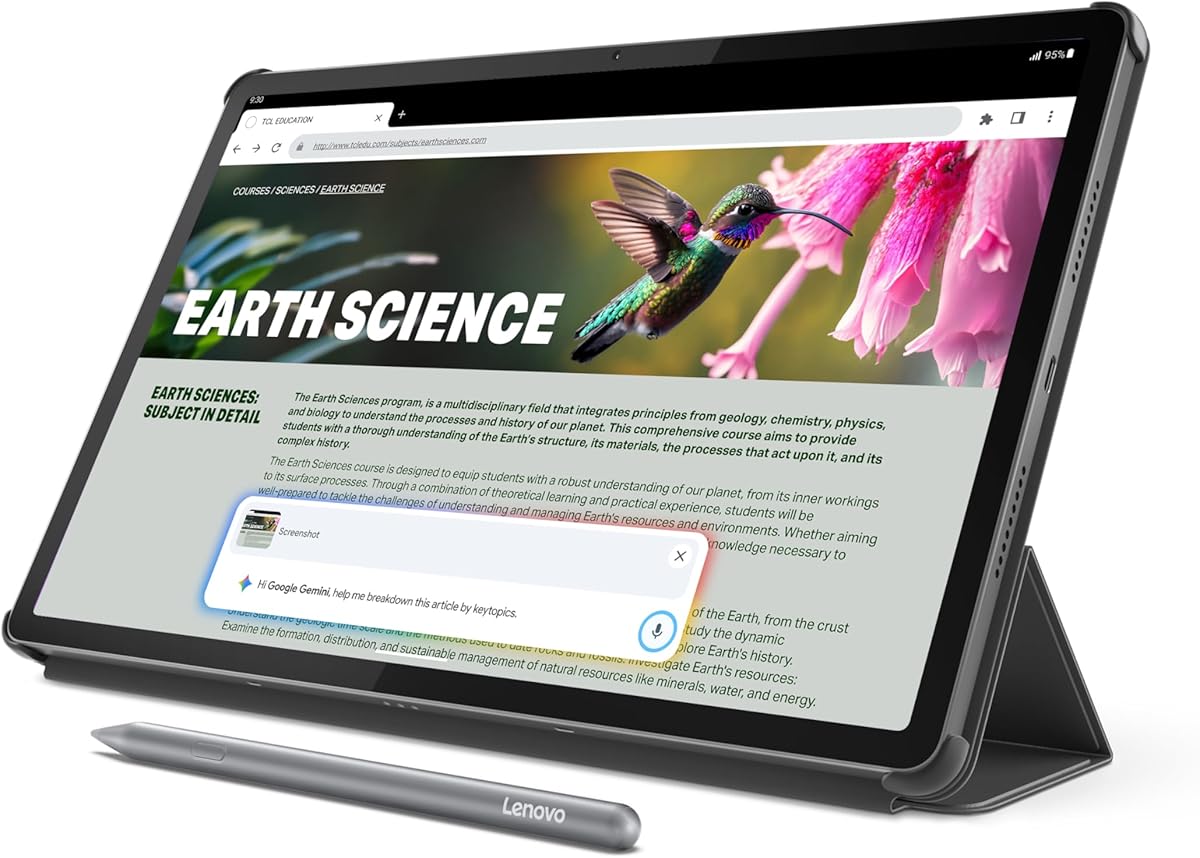
The Lenovo Idea Tab Pro is a general-purpose 12.7-inch Android tablet with a 3K LCD, included pen, and folio case. Its 4.6 rating is one of the highest in the list. Rather than targeting professional drafters, it is built around study, media, AI-assisted organization, and touch performance, which makes it a potential companion for viewing plans, annotating documents, and producing early design concepts.
We may earn a commission when you buy through this link, at no additional cost to you.
The MediaTek Dimensity 8300 provides the processing foundation, while 8GB of memory and 128GB of storage support ordinary multitasking and local files. Wi-Fi 6E improves network performance, and a 360Hz touch sampling rate is designed to make pen and finger interactions feel responsive. The included Tab Pen Plus also works with Circle to Search, allowing a circled area of the display to become a visual search query.
The 3K panel makes it well suited to reading detailed drawings, while quad JBL Dolby Atmos speakers support instruction and review sessions. Battery life is listed at up to 11 hours of unplugged video streaming, with 45W quick charging. These strengths are useful for a student or consultant who needs a device for presentations, reference material, field notes, and light markup.
The limitation is the absence of supplied details about pen pressure levels, active-area dimensions, and dedicated CAD applications. As a result, it should not automatically be chosen over a purpose-built pen display for precision drafting. It is best for users who value a high-resolution screen, capable general tablet, and useful study features in one device.
The high-resolution 12.7-inch display gives technical plans and reference images room to remain legible. The included pen and folio also make it convenient to annotate documents during lectures, reviews, and client conversations.
MediaTek processing, Wi-Fi 6E, generous storage, and a long stated runtime support broader productivity needs. Gemini and Circle to Search add quick ways to investigate visual references without leaving the tablet environment.
We may earn a commission when you buy through this link, at no additional cost to you.
The HUION H420X is a compact pen tablet aimed at users who need inexpensive, dependable stylus input. Its 4.4 rating is among the strongest in the guide. With a 4.17 by 2.6-inch active area, it is best suited to sketching compact symbols, tracing details, signing documents, and performing light CAD work beside a larger display.
We may earn a commission when you buy through this link, at no additional cost to you.
The battery-free stylus provides 8,192 pressure levels and a 300 PPS report rate, producing lines that the manufacturer describes as quick and smooth. Two customizable side buttons can switch functions such as right-click and eraser behavior. The 167g, seven-millimeter-thick body is easy to carry and occupies little desk space, which makes the H420X convenient for mobile or shared workstations.
Compatibility is broad for desktop use. The supplied information lists Windows, Mac, and Android support and names major graphics applications including Photoshop, Illustrator, Sketchbook, Clip Studio Paint, Corel Painter, ZBrush, and several manga and comic tools. It can also support note-taking, document annotation, web conferencing, and productivity applications without requiring a driver installation.
The major compromise is the size of the drawing region. CAD users working on floor plans, detailed assemblies, or extensive technical illustrations may find it restrictive. It is not compatible with iOS. Even so, for annotation, compact diagrams, and budget-conscious pen practice, the H420X provides pressure and application support well beyond a basic finger-operated tablet.
The 8,192 pressure levels and 300 PPS reporting rate support more controlled marks than a typical finger input. Customizable stylus buttons further improve access to common editing commands.
Plug-and-play operation reduces setup barriers, while support for major graphics applications makes the tablet useful beyond technical work. Its compact body also suits travel, hot-desking, and shared workspaces.
We may earn a commission when you buy through this link, at no additional cost to you.
The Lenovo Idea Tab Pro Gen 2 is a large 13-inch tablet built for study, document handling, and content consumption, with a supplied rating of 4.3. Its 3.5K IPS display, 800-nit brightness, and 144Hz refresh rate make it compelling for reviewing detailed plans and technical references on the move.
We may earn a commission when you buy through this link, at no additional cost to you.
Smart Capture can pull visuals from documents, while Sketch to Image can transform hand-drawn ideas. Lenovo AI Live Transcript can capture meetings and classes, and Lenovo AI Notes can summarize, rewrite, or extend written content. These features may support collaborative CAD processes involving research, client input, annotation, and documentation even though they do not replace dedicated drafting controls.
The Snapdragon 8s Gen 4 Mobile Platform, integrated Adreno 825 GPU, 8GB memory, and 128GB storage provide capable everyday performance. A built-in NPU supports the advertised AI functions. TÜV Rheinland Low Blue Light and Flicker Free certification is useful for extended reading sessions, while JBL speakers tuned by Dolby Atmos add value for instructional media.
This tablet is best for users who need a large, vivid screen and a versatile note-taking and research device. Dedicated pen specifications and professional CAD support are not stated, so it should be chosen over a specialized pen display only when broader study, media, and annotation functions carry equal weight.
A 3.5K resolution and 800-nit brightness support clear viewing of detailed drawings and reference documents. The large panel reduces the need to zoom or repeatedly pan when reviewing a visual plan.
Smart Capture, Sketch to Image, live transcription, and AI-assisted notes extend the tablet beyond passive viewing. These tools can turn a meeting or research session into structured documentation for later project use.
We may earn a commission when you buy through this link, at no additional cost to you.
The Samsung Galaxy Tab S10+ is a premium Android tablet with a 12.4-inch Dynamic AMOLED 2X display, 256GB of storage, and an included S Pen. Its 4.7 rating is the highest supplied rating in the list. It is not presented as a dedicated pen display, but its large, vivid screen and stylus support make it appealing for plan review, visual development, and mobile creative work.
We may earn a commission when you buy through this link, at no additional cost to you.
Sketch to Image can transform simple sketches into finished visuals, while Circle to Search allows users to investigate objects shown on the display. The S Pen supports direct interaction without adding another accessory. The AMOLED panel and reduced glare should make detailed images and technical references look crisp, although the supplied information does not state specific pen pressure levels or CAD compatibility.
Samsung also describes the device as resistant to bumps, dust, and splashes, which is reassuring for use in studios, classrooms, or client environments. Its powerful tablet processor supports general productivity and multitasking, and 256GB provides substantial local storage for project files, references, and exported graphics. Galaxy AI features also extend to lecture and meeting notes through Note Assist.
Choose the S10+ when a premium general-purpose tablet, an excellent display, and integrated creative tools matter more than a dedicated pressure specification or a specific professional CAD environment. It is well suited to concept work and visual review. Users who need exact pen behavior, a mapped CAD surface, or particular desktop software should verify those details before treating it as a primary drafting station.
The 12.4-inch Dynamic AMOLED 2X panel provides a premium surface for viewing designs, textures, and reference images. Reduced glare supports comfortable use in varied indoor lighting.
The included S Pen removes the need for a separate stylus, while Sketch to Image expands a simple concept into a more developed visual. Circle to Search makes visual research more immediate.
We may earn a commission when you buy through this link, at no additional cost to you.
The Samsung Galaxy Tab S10 FE+ combines a large 13.1-inch display with an S Pen and a 4.7 customer rating, matching the highest rating in the group. Its 128GB storage and Wi-Fi-only configuration position it as a versatile mobile tablet for reading plans, taking handwritten notes, and developing visual ideas away from a desk.
We may earn a commission when you buy through this link, at no additional cost to you.
Handwriting Assist can straighten, align, and adjust handwritten text, which is useful for technical meeting notes and field observations. Math Solver can convert equations written with the S Pen into text. The pen is described as feeling responsive and paper-like, supporting natural list writing and freehand drawing, although no pressure sensitivity or active-area measurements are provided.
The tablet's water resistance is a practical advantage for jobsites, workshops, classrooms, and other environments where spills are possible. A powerful processor supports entertainment, casual multitasking, and general work, while Super Fast Charging helps reduce downtime. Storage can also be expanded with a microSD card, with the listing noting support for up to 1TB of additional space.
This model is best for users who want a large, durable mobile display with useful pen and note features. It is less clearly suited to precision drafting because the product information does not specify pressure levels, pen latency, or professional CAD applications. Its strength is the combination of a large canvas, portability, and practical tools for organizing written project information.
The 13.1-inch screen provides ample room for site sketches, schedules, and technical references. Water-resistant construction makes the device more practical in environments where spills or damp conditions may occur.
Handwriting Assist and Math Solver can turn rough written input into more orderly results. These functions complement the S Pen for collaborative sessions and mobile documentation.
We may earn a commission when you buy through this link, at no additional cost to you.
The Wacom Intuos Pro Large is a pen tablet without a screen, but it offers a notably generous 16:9 active area and professional controls. Its supplied rating is 4.3. The 16:9 format suits wide monitors and multi-display workstations, allowing CAD users to map a substantial drawing region to a large technical workspace.
We may earn a commission when you buy through this link, at no additional cost to you.
ProPen 3 provides 8,192 pressure levels, tilt support, and lag-free tracking. Its grip can be configured in slim, straight, or flared forms, with adjustments for balance and button placement. Ten customizable ExpressKeys and two mechanical dials keep common commands close to the drawing hand, which can reduce workflow interruptions when adjusting layers, tools, views, or line properties.
The tablet measures only four millimeters at its thinnest and uses a magnesium construction described as robust. It supports USB or Bluetooth and can switch between multiple computers, useful for users who move between a drafting workstation, a laptop, and a presentation system. The 14.8 by 9.9-inch footprint contains the large active area without requiring a screen of the same size.
The principal trade-off is the lack of a built-in display. Users who draw directly beneath the pen will prefer a pen display such as the Kamvas 13, while those who already have a large calibrated monitor may find this format more comfortable and spacious. For a desktop CAD setup built around a wide display, the Intuos Pro Large offers an excellent combination of surface area, shortcut access, and wireless flexibility.
Pressure, tilt, grip shape, balance, and button layout can be adjusted to match a user's hand and working style. This level of personalization helps reduce fatigue during extended drafting sessions.
Ten ExpressKeys and two mechanical dials place frequently used actions near the active area. Bluetooth switching also makes the tablet practical for multi-computer studios and mobile desk arrangements.
We may earn a commission when you buy through this link, at no additional cost to you.
Choosing a tablet for CAD design means balancing pen precision, usable drawing area, display visibility, software access, and portability. The most important question is whether the device will serve as a precision drafting surface, a portable sketch and review system, or a standalone creative tablet.
Choose a pen display for direct positioning and a pen tablet for maximum workspace efficiency. Verify the available desk and monitor arrangement before deciding.
Match the drawing area to your typical document scale. Larger is more versatile, but portability and desk space still matter.
Prioritize pen behavior supported by your software, not just a headline pressure number. Test the device when possible and confirm driver compatibility.
Choose standalone hardware for mobility, or a computer-linked display for professional application access. Do not assume preinstalled drawing apps include engineering CAD.
Look for sharp resolution, controlled reflections, and accurate color when judging fine technical details. Calibrated displays offer an extra level of confidence for visual deliverables.
Choose controls that can be customized around your real commands. Ergonomics matter as much as shortcut count during extended use.
Balance portability against performance and screen size. For travel, prioritize battery life, weight, and a protective case; for a fixed desk, wired stability may matter more.
Verify every required application and driver before purchasing. Strong hardware specifications cannot compensate for an incompatible workflow.
Begin by installing the manufacturer's current driver and any updates required by your drawing or CAD application. Connect the tablet by USB for initial configuration, set the active area to match the intended screen, and adjust pen pressure, tilt, button mappings, and display scaling. For a standalone tablet, install the required CAD or drawing applications, update the operating system, and test pressure and touch behavior with a simple project before beginning detailed work.
Keep the active surface clean and avoid dragging the nib across dirty areas, since grit can scratch the coating. Store the pen in its case or holder and use a protective cover for portable devices. Do not place the tablet under heavy objects, expose it to excessive heat, or use incompatible charging equipment. A screen protector and supported case can reduce accidental damage, while careful cable management helps prevent connector strain.
Calibrate the pen only when the application and device support it, and recalibrate after changing screens, working temperatures, or physical setups. Back up CAD files regularly and export a test copy to confirm that line weight, dimensions, layers, and annotations remain intact. Treat the tablet as a precision input tool: stable placement, clean hands, a comfortable posture, and consistent calibration produce more repeatable results than changing settings after every project.
A dedicated drawing tablet generally offers more precise pen control, pressure sensitivity, larger working areas, or direct-on-screen positioning. A regular tablet can still support lightweight sketching, markup, plan viewing, and mobile workflows. The better choice depends on whether precision drafting or portable general computing is the main requirement.
A standalone tablet is useful when the installed applications and operating system support your required CAD tasks. However, none of the supplied listings explicitly identifies a complete professional CAD suite. Confirm application availability, driver support, file compatibility, and export options before treating a standalone model as a desktop CAD replacement.
Higher pressure resolution can provide finer control over line weight, but the most important factor is consistent performance in the software you use. The 16,384-level Kamvas 13 Gen 3 provides the highest figure in this guide, while the 8,192-level Wacom and HUION options offer substantial precision for technical work.
Yes, particularly when paired with a large, accurate monitor. Screenless models often provide a generous active area and shortcut controls while reducing eye movement between the drawing and the display. The tradeoff is that the pen tip is not directly beneath the image, so users need an accurate screen-to-tablet mapping.
A display is helpful when tracing or marking exact positions directly on a plan. A screenless tablet can also work if the plan is displayed at a known scale and the software maps the active area correctly. Large floor plans benefit from a wide active area, precise calibration, and comfortable zoom and pan controls.
Not all listings claim dedicated professional CAD compatibility. The HUION H420X lists many graphics and productivity applications, while the screen-equipped Kamvas supports several operating systems. The standalone PicassoTab and RubensTab emphasize included creative apps. Verify the exact CAD package, operating system, pen driver, and required file formats before purchase.
USB is often the more dependable choice for a fixed workstation because it provides a direct power and data connection. Bluetooth offers a cleaner desk and convenient switching between computers, which the Wacom Intuos products support. For latency-sensitive or extended sessions, test both methods and use the connection that feels most consistent.
Use a clean nib, stable tablet placement, suitable pressure settings, and a calibrated display when available. Avoid changing the pen grip or tablet position mid-project, since those changes can affect hand movement. Save application-specific pressure profiles for different line types and run a small test drawing before each major project.
The HUION Kamvas 13 Gen 3 is the strongest overall option for users with a compatible computer because it combines a large laminated display, high pressure resolution, calibrated color, and well-placed controls. The Wacom Intuos Pro Large is ideal for a wide-monitor workstation that values pen customization and active area, while the HUION H420X delivers the most economical route into pressure-sensitive technical drawing.
Prioritize the workflow you actually need. Choose a screen-equipped model for direct positioning, a large screenless tablet for maximum drawing space, or a standalone tablet for mobile work without a laptop. If professional CAD software is essential, verify operating-system and driver support before choosing a general-purpose tablet based only on display quality or included accessories.
Ratings and availability can change, and current prices fluctuate across retailers. Review the latest product listing, warranty terms, software requirements, and accessory bundle before making a final decision. The right tablet should not merely look precise; it should integrate comfortably with your display, software, working space, and project schedule.