
Logitech ERGO M575S
4.6Editor score
Space-saving thumb control
Bluetooth and Logi Bolt
Three customizable buttons
Our Mouse for Drafting guide compares 10 ergonomic, precision, trackball, and 3D control mice to help you choose the right model for CAD work and drafting.
A mouse for drafting should translate small, deliberate movements into precise cursor control while remaining comfortable during long CAD sessions. The best options combine accurate sensors, useful programmable controls, smooth scrolling, ergonomic shapes, and dependable connectivity, whether you work at a large drafting desk or in a compact studio.
We compared ten mice based on their supplied specifications, supported operating systems, control layouts, tracking capabilities, connectivity options, and ergonomic design. The list covers conventional ergonomic mice, trackballs designed to reduce hand movement, Mac-oriented models, and a specialized six-degrees-of-freedom controller for 3D work.
Each pick reveals a different way to approach drafting: the top selections offer strong precision, low-space control, or specialized 3D navigation, while the remaining models provide vertical ergonomics, customizable workflows, and quiet operation. Prices and availability can change, so confirm current details before purchasing.
4.6Editor score

4.6Editor score
4.4Editor score
The following comparison shows the core control style, tracking approach, connectivity, and ergonomic positioning of each mouse, helping drafters identify the option that matches their CAD software, workspace, and preferred navigation method.
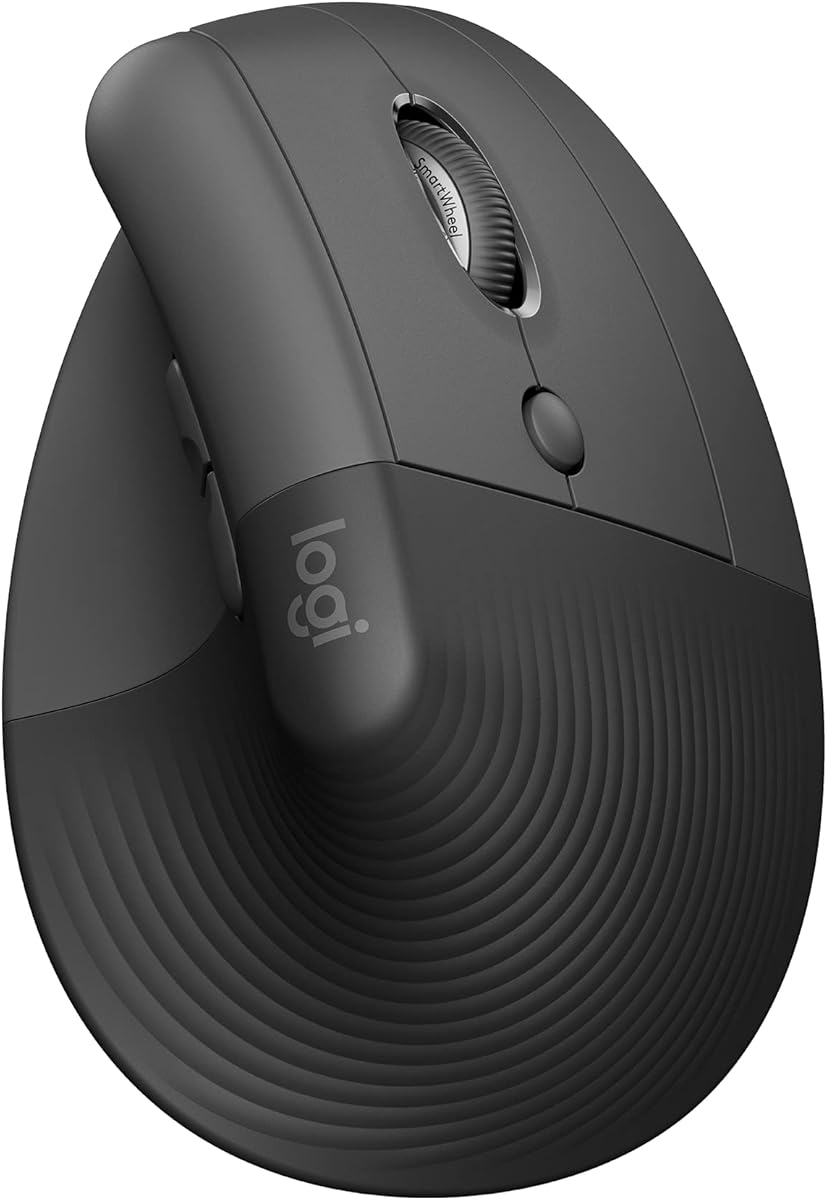


The Logitech Lift is a compact vertical wireless mouse with a 4.4 rating and a clear focus on comfortable everyday productivity. Its 57-degree vertical form places the forearm in a more natural position, while the softly textured grip and snug thumb rest make it especially relevant to drafters who spend long stretches selecting lines, dimensions, and drawing commands.
We may earn a commission when you buy through this link, at no additional cost to you.
Its standout features include easy-to-reach customizable buttons, whisper-quiet clicks, and a SmartWheel that shifts between smooth and traditional scrolling. Connection options include Bluetooth Low Energy and the Logi Bolt USB receiver, with support for Windows, macOS, iPadOS, Chrome OS, and Linux. The stated battery life reaches up to two years, making it practical for a frequently used drafting station.
The main compromise is its fixed vertical orientation, which means it is intended for right hands and may feel unfamiliar during the first few sessions. It also remains a conventional mouse rather than a specialized 3D controller. For drafters who prioritize a smaller footprint, quiet operation, and wrist-friendly geometry, those limitations are easy to accept.
This is a strong choice for right-handed drafters working on a laptop or in a compact office. It is less suitable for users who want left-handed support or need dedicated six-axis navigation, but it delivers an approachable blend of vertical ergonomics, programmable convenience, and wireless flexibility.
The 57-degree shape changes the angle of the hand and forearm without adding unfamiliar controls. Drafters can move between panning, zooming, and selecting without repeatedly flattening the wrist, making Lift a comfortable everyday complement to demanding CAD work.
Whisper-quiet switches reduce distractions in shared studios, while customizable buttons can be assigned to common CAD commands. The SmartWheel also gives long technical documents a quiet scrolling option when rapid line-by-line wheel input is not required.
We may earn a commission when you buy through this link, at no additional cost to you.
The Logitech MX Master 4 Pale Gray combines a 4.3 rating with a sophisticated control system for technical and creative work. Its Haptic Sense Panel provides customizable feedback for particular actions, while the Actions Ring places filters, adjustments, and shortcuts close to the cursor, reducing the need to move away from the work area.
We may earn a commission when you buy through this link, at no additional cost to you.
Precision is another defining strength. The MagSpeed wheel can scroll up to 1,000 lines per second and stop on a single pixel, making it useful for navigating large technical drawings, model properties, and long specifications. A thumb scroll wheel adds a second axis of movement, and Quiet Clicks are designed to reduce click noise by 90 percent.
The mouse supports Bluetooth and a USB-C dongle, with the latter offering stronger, faster connectivity through an advanced radio chip and optimized antenna. Its tilted ergonomic shape is designed to reduce hand stress, although people accustomed to flat mice may need time to adapt to the controls and Actions Ring.
This model is well suited to drafters who want programmable shortcuts, fast navigation, and tactile cues without maintaining a separate control pad. It is less ideal for users seeking a compact, simple mouse or a dedicated 3D navigation device, but it offers one of the most complete conventional-mouse feature sets in the group.
The Actions Ring adapts to the active application and can expose frequently used controls around the cursor. That makes it easier to adjust layers, filters, view settings, or tool parameters without moving the hand back and forth between separate hardware.
The MagSpeed wheel handles both rapid document movement and pixel-level positioning, while the separate thumb wheel supports sideways navigation. Together, they give drafter control over wide technical drawings and narrow modeling panels without repeated wrist repositioning.
We may earn a commission when you buy through this link, at no additional cost to you.
The Graphite edition of the Logitech MX Master 4 carries the same 4.3 rating and advanced productivity tools as the Pale Gray version. It is particularly appealing to drafters who build repeatable workflows around layers, object snaps, orthographic modes, and other commands that benefit from one-touch access.
We may earn a commission when you buy through this link, at no additional cost to you.
The Haptic Sense Panel adds distinct, customizable feedback for selected actions, shortcuts, and notifications. This tactile confirmation can help users verify a command without looking away from the model. The Actions Ring provides an application-sensitive overlay for commonly used adjustments, and the MagSpeed wheel moves quickly through long documents while remaining capable of pixel-level stopping.
Drafters can connect over Bluetooth or use the included USB-C dongle for a stronger wireless connection. Quiet Clicks and the natural tilt reduce mechanical noise and hand strain. The trade-off is that this is not a minimalist device: learning the Actions Ring, haptic settings, and application profiles takes time, and some users may configure only a fraction of the available features.
Choose the Graphite model if your drafting workflow depends on repeated tool switching and you want a full-size wireless mouse with tactile feedback. It is a particularly good match for professionals working across CAD, visualization, and productivity applications rather than users who need the most compact conventional option.
Haptic feedback can provide a distinct sensation for an assigned command or notification. In a detailed drafting session, that confirmation can reduce the need to visually verify every action while attention remains on the geometry.
Bluetooth offers flexibility across devices, while the USB-C dongle is intended for faster, stronger performance in demanding sessions. This dual approach suits drafters who alternate between a desktop workstation and a portable CAD setup.
We may earn a commission when you buy through this link, at no additional cost to you.
The Logitech MX Ergo S is an advanced wireless trackball with a 4.4 rating and a sculpted design aimed at medium-to-large hands. Its 20-degree tilt, soft rubber grip, and thumb-operated ball reduce the amount of arm movement required to move the cursor, making it attractive for drafters who prefer a fixed hand position.
We may earn a commission when you buy through this link, at no additional cost to you.
A button switches between standard-speed and high-precision tracking, allowing users to move quickly across a drawing and then slow down for fine alignment. Six customizable buttons can be assigned to shortcuts, and the Logi Options+ app adds Smart Actions and application-aware profiles. These features are especially useful in CAD environments where repeated view or command changes are common.
The mouse supports Bluetooth and an included Logi Bolt receiver, with an Easy-Switch button for changing devices. USB-C charging offers up to 24 hours of use from a one-minute charge or up to 120 days from a full charge, although the cable is not included. As with any trackball, new users need a short adjustment period before they can achieve the same control as a familiar mouse.
MX Ergo S fits drafters who spend long periods panning, scrolling, and adjusting models without wanting to reposition the mouse across the desk. It may be less attractive for users who prefer immediate finger-driven movement, but its stability, precision modes, and programmable buttons make it a strong workstation option.
The tracking-mode button lets users alternate between quick cursor travel and fine positioning. That flexibility is useful when moving from an overall model view to a close-up of intersecting lines or small annotation details.
Because the ball stays under the thumb, the device requires little surface movement. This preserves a consistent hand position while drafting and can be especially useful on a crowded desk shared between a keyboard, reference drawings, and other tools.
We may earn a commission when you buy through this link, at no additional cost to you.
The Logitech MX Vertical offers a proven ergonomic approach with a 4.4 rating. Its 57-degree vertical angle positions the hand in a natural handshake posture, reducing wrist pressure and muscular activity compared with a standard mouse. That makes it a strong candidate for drafters who repeatedly pan, zoom, and select with the same hand.
We may earn a commission when you buy through this link, at no additional cost to you.
The 4000 DPI optical sensor supports precise cursor placement, while an on-board speed switch changes sensitivity without requiring software. Compared with a traditional 1000 DPI mouse, the stated specifications indicate four times less hand movement. A textured rubber surface improves grip, and the sculpted form is intended to fit a variety of hand shapes.
The model was designed and tested according to criteria set by leading ergonomists, which adds confidence for extended use. Its tradeoff is that the older feature set lacks the sophisticated haptics, application-aware controls, and cross-computer workflow features found in the newest MX models. Users moving from a flat mouse may also need time to retrain their wrist angle.
MX Vertical remains a compelling choice for drafters who value wrist comfort and straightforward cursor-speed control over extensive programmable features. It is best suited to right-handed users who can adapt to a vertical shape and want a dedicated precision sensor for technical drawing work.
The vertical geometry places the forearm at a handshake-like angle instead of forcing the wrist to bend outward. Over long drafting sessions, that more neutral position may be easier on the wrist and forearm than a low-profile traditional mouse.
A dedicated speed switch lets users move between different sensitivity levels immediately. This is convenient when switching from broad viewport movement to precise snapping, line placement, or annotation work without opening a settings menu.
We may earn a commission when you buy through this link, at no additional cost to you.
The Logitech MX Master 4 for Mac is built around an Apple-oriented experience and carries a 4.4 rating. Logi Options+ support for macOS, matching finishes, and USB-C charging while the mouse is in use make it a natural choice for drafters working on MacBook-based or Mac desktop systems.
We may earn a commission when you buy through this link, at no additional cost to you.
Its Haptic Sense Panel adds configurable feedback for shortcuts and notifications, while the Actions Ring places app-specific tools near the cursor. The MagSpeed wheel supports up to 1,000 lines per second and pixel-level stops, which is valuable when moving between a full drawing sheet and tightly spaced technical annotations.
Despite the Mac emphasis, the supplied specifications also list macOS, iPadOS, and Windows compatibility. A thumb scroll wheel, Quiet Clicks with 90 percent less noise, and a naturally tilted body round out the feature set. The principal inconvenience is that the USB-C charging cable is not included, and users who want the most immediate out-of-box productivity may need time to learn the Actions Ring.
This model is an excellent match for architects, engineers, and industrial designers whose primary drafting environment runs macOS. It also suits mixed-platform users who value the combination of high-speed scrolling, tactile cues, and a sculpted grip.
Logi Options+ functions for macOS provide the app-specific controls expected from a premium productivity mouse. Drafters can keep frequently used filters, adjustments, and shortcuts close to the cursor instead of navigating application menus.
The MagSpeed wheel gives users the ability to move rapidly through large files or stop with pixel precision. Quiet Clicks reduce mechanical distraction, which is useful in offices, studios, and shared workspaces where frequent drawing adjustments occur.
We may earn a commission when you buy through this link, at no additional cost to you.
The Logitech MX Master 3S is the strongest overall choice for drafting in this group, combining the highest listed rating of 4.6 with an 8000 DPI any-surface sensor. It can work on surfaces including glass, giving drafters more freedom when the usual mouse area is occupied by keyboards, reference sheets, or drafting instruments.
We may earn a commission when you buy through this link, at no additional cost to you.
MagSpeed scrolling is described as 90 percent faster, 87 percent more precise, and ultra quiet, making the wheel useful for both rapid movement through long drawings and careful alignment at zoom levels where one pixel matters. Quiet Clicks produce 90 percent less click noise, while app-specific profiles in Logi Options+ let users tailor buttons to different drafting applications.
The Flow feature supports movement of text, images, and files between Windows and macOS computers, and the mouse can connect to three Bluetooth devices across Windows, macOS, Chrome OS, and Linux. This Bluetooth edition is the key tradeoff: it includes neither a Logi Bolt USB receiver nor a charging cable, so it is best for users committed to wireless connectivity rather than a complete multi-device accessory kit.
For most drafters, the combination of precise tracking, fast quiet scrolling, ergonomic shape, programmable controls, and seamless device switching is hard to beat. It is especially suitable for users who move between CAD and general productivity software or work across a laptop and desktop without needing a receiver.
The 8000 DPI sensor and customizable sensitivity support both broad viewport movement and close detail work. Any-surface tracking also means the mouse can operate on glass or other unconventional surfaces when a standard mouse mat is unavailable.
Three-device Bluetooth support and Flow cross-computer control make MX Master 3S valuable for professionals alternating between CAD workstations, laptops, and supporting applications. Users can move information between compatible systems without treating each machine as an isolated task.
We may earn a commission when you buy through this link, at no additional cost to you.
The Logitech ERGO M575S pairs a 4.6 rating with an approachable trackball design, making it the best value pick for drafting on a budget. Its thumb-operated ball controls the cursor without requiring the hand to travel across the desk, which can be helpful in compact studios and crowded technical workspaces.
We may earn a commission when you buy through this link, at no additional cost to you.
Three customizable buttons support common commands, shortcuts, and Smart Actions through the relevant configuration tools. The mouse can connect through Bluetooth or the included Logi Bolt receiver, and an AA battery is included. It also works on any surface because the cursor is controlled by the trackball rather than an optical sensor reading a fixed desktop area.
Its ergonomic shape is intended to support the hand and realign the forearm into a better posture, with support for most hand sizes. The tradeoff is that three buttons are more limited than the six-button MX Ergo S, and the supplied specifications do not mention the same switchable high-precision tracking mode. Users may also need practice to rotate the ball smoothly for long diagonal movements.
Choose M575S if you want a space-saving, rechargeable-free trackball with strong ratings and straightforward wireless connectivity. It is a practical solution for drafters who need comfortable cursor control, common shortcuts, and broad surface compatibility without the full feature set of a premium productivity mouse.
Keeping the hand nearly stationary is valuable when a compact desk leaves little room for both a mouse and a separate navigation pad. The trackball can also sit on top of paperwork or other materials while remaining responsive.
Bluetooth makes it simple to move between modern devices, while the included Logi Bolt receiver provides a dedicated connection where preferred. The supplied AA battery avoids the need to carry a separate charging cable for every session.
We may earn a commission when you buy through this link, at no additional cost to you.
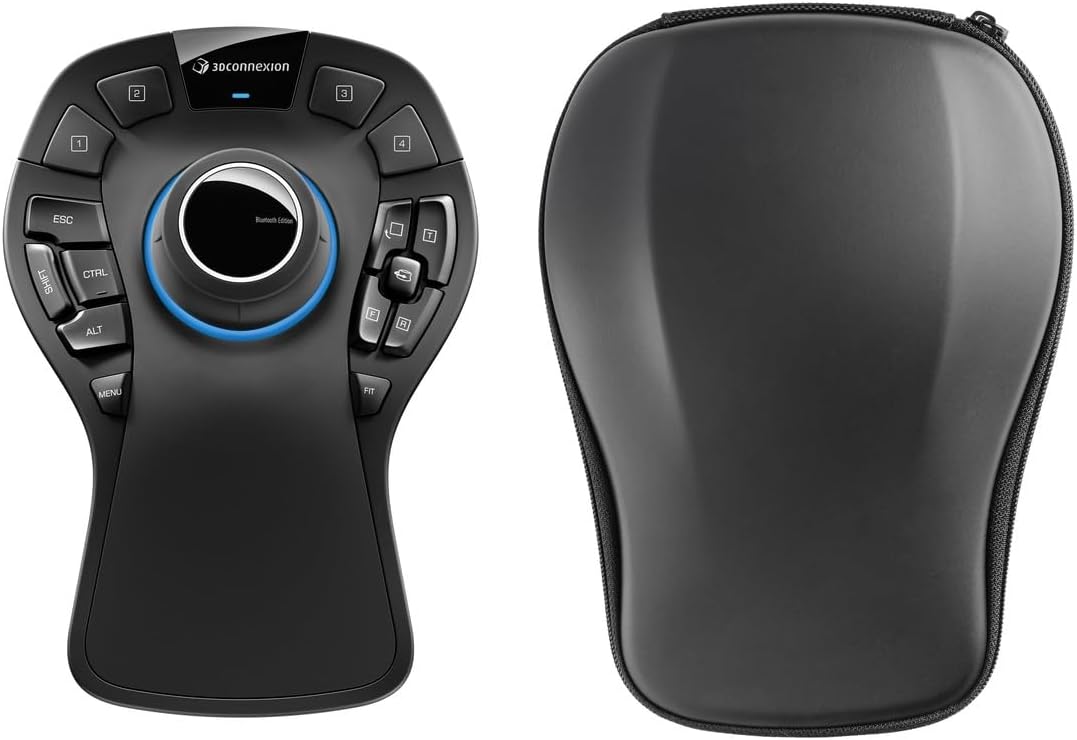
The 3Dconnexion SpaceMouse Pro is the premium specialist in this lineup, offering a 4.4 rating and a six-degrees-of-freedom sensor for controlling objects along multiple axes. Unlike a conventional mouse, it is designed to translate hand and object motion into 3D navigation, making it particularly relevant to CAD, modeling, visualization, and technical drafting workflows.
We may earn a commission when you buy through this link, at no additional cost to you.
Its compact controller form leaves the regular mouse available for selecting geometry, while the SpaceMouse handles rotation, zoom, and translation in supported applications. That division of labor can make complex 3D scenes easier to inspect because the user can manipulate the view without continuously moving a desktop mouse.
The device uses a rechargeable 1100 mAh lithium-polymer battery and supports wireless USB-C and Bluetooth Low Energy connectivity. Its primary tradeoff is specialization: it does not replace a standard pointing device, and its value depends on software compatibility and a workflow that benefits from direct six-axis manipulation. Users working primarily on flat 2D drawings may get less benefit than 3D modelers.
SpaceMouse Pro is the right premium purchase for architects, mechanical designers, and other professionals who regularly rotate, pan, and zoom complex models. It works best as a companion to a conventional mouse rather than as a universal replacement.
The six-degrees-of-freedom sensor lets users rotate and move views in multiple directions using the controller. In compatible 3D applications, this can provide a more direct relationship between hand movement and model orientation than repeated mouse-wheel zooming.
Keeping view navigation on a separate controller leaves the conventional mouse focused on line, point, and face selection. This makes SpaceMouse Pro most useful in model-heavy workflows where camera manipulation and geometry editing occur together.
We may earn a commission when you buy through this link, at no additional cost to you.
The White Silver edition of the Logitech MX Master 4 for Mac combines a 4.4 rating with a light-colored design intended to coordinate with Apple equipment. It offers the same advanced workflow tools as the Space Black version, including the Haptic Sense Panel, application-aware Actions Ring, MagSpeed wheel, and thumb scroll wheel.
We may earn a commission when you buy through this link, at no additional cost to you.
For drafters, the strongest features are fast document navigation, precise stopping, and tactile command feedback. The MagSpeed wheel can traverse up to 1,000 lines per second yet stop at a pixel, while Quiet Clicks reduce noise by 90 percent. Logi Options+ support for macOS helps expose filters, adjustments, and shortcuts in the active application.
USB-C charging lets the mouse operate while charging, although the cable is not included. Compatibility also extends to iPadOS and Windows, which helps users who alternate between Apple and PC environments. As with the other MX Master 4 versions, the Actions Ring and haptic configuration introduce a modest learning curve, and the pale finish may show visible wear sooner than darker models.
This edition is best for drafters who want premium productivity controls in a coordinated light-toned setup. It suits Apple-focused studios particularly well, while remaining useful for mixed-platform users who value high-speed scrolling and programmable CAD workflows.
The White Silver finish and macOS-focused Logi Options+ experience are intended to blend naturally with an Apple desk. It offers full productivity-mouse functionality without making the drafting setup look visually utilitarian.
Haptic feedback helps distinguish configured actions, while the MagSpeed wheel handles rapid movement and exact positioning. This combination supports both quick viewport changes and deliberate adjustments to a detailed technical drawing.
We may earn a commission when you buy through this link, at no additional cost to you.
The right drafting mouse depends on the kind of geometry you create, the software you use, the size of your desk, and how long you remain at the workstation. Precision, programmable controls, ergonomic positioning, and reliable connectivity should be weighed against one another rather than treated as isolated features.
Precision begins with tracking resolution, but the most useful specification is the one that supports both rapid viewport movement and careful alignment. The Logitech MX Master 3S uses an 8000 DPI any-surface sensor, while MX Vertical uses a 4000 DPI sensor with an on-board speed switch. Users should also consider whether they need pixel-level wheel stops, independent cursor-speed controls, or the ability to work on glass and other unusual surfaces.
Choose a high-resolution sensor when you frequently zoom in on intersections, dimensions, control points, or annotations. A sensitivity switch is useful when you alternate between broad model navigation and fine edits, while any-surface tracking gives you more freedom when a standard mouse mat is impractical.
Drafting tools such as pan, zoom, orthographic mode, object snaps, and layer selection can save considerable time when assigned to accessible buttons. The MX Master 4 models add an Actions Ring and Haptic Sense Panel, the MX Ergo S provides six customizable buttons, and the M575S offers three. Application-specific profiles matter because a useful shortcut set in one CAD package may not be useful in another.
Prioritize models with clearly placed controls and software that can assign useful commands per application. Do not buy solely for button count; consider whether the extra controls can be reached without breaking your grip or whether they are arranged in a way that prevents accidental presses.
Most 2D drafting workflows are well served by a precise conventional mouse with fast scrolling. True 3D model inspection is different because the user often needs to rotate, zoom, and pan around an object simultaneously. The 3Dconnexion SpaceMouse Pro addresses that requirement with a six-degrees-of-freedom sensor and is best treated as a companion to a standard mouse.
Choose a conventional ergonomic mouse for flat plans, elevations, details, and annotation work. Consider a SpaceMouse when the main difficulty is orienting yourself within a 3D assembly. If you need both selection and view control, the most effective setup may combine a precise pointing mouse with a specialized navigation controller.
Trackballs move the cursor by rotating a ball rather than sliding a mouse across the desk. This reduces arm travel and keeps the hand relatively stationary, which can benefit long sessions and compact workspaces. The MX Ergo S and M575S both support this approach, although the MX Ergo S adds a 20-degree tilt, switchable tracking modes, six buttons, and USB-C charging.
Choose a trackball if conserving desk space or reducing whole-arm movement is important, but allow time to learn smooth ball control. A conventional mouse is usually easier for users accustomed to direct one-to-one movement, especially when precise clicking and rapid repositioning are the primary tasks.
A comfortable drafting mouse should keep the hand and wrist in a sustainable position without forcing awkward finger extension. Vertical models such as Lift and MX Vertical use a 57-degree angle, while the MX Ergo S uses a tilted trackball structure and a soft rubber grip. Hand size also matters: Lift is specified for small-to-medium right hands, whereas MX Ergo S is intended for medium-to-large hands.
Select a shape that fits your hand and matches your preferred posture rather than relying only on an ergonomic label. Right-handed users should verify that the thumb rests, buttons, and wheel placement suit them, and anyone switching from a flat mouse should allow an adjustment period before deciding the shape is uncomfortable.
Connection choice affects setup, reliability, and portability. Bluetooth simplifies pairing and lets several models connect to multiple devices; Logi Bolt provides a dedicated receiver, while some MX Master 4 configurations also use a USB-C dongle. The MX Master 3S Bluetooth edition specifically does not include a receiver or charging cable, and the SpaceMouse Pro supports wireless USB-C as well as Bluetooth Low Energy.
Check which connection method your computer supports and whether you need one device, several devices, or a receiver-based link. Mixed operating-system users should verify the listed support for Windows, macOS, Chrome OS, Linux, iPadOS, and their CAD applications before buying.
Large technical drawings, specifications, schedules, and model properties can create a heavy navigation load. MagSpeed wheels on the MX Master 3S and MX Master 4 models are designed to move rapidly while retaining a more exact stopping position. A thumb wheel adds horizontal control, while the SmartWheel in Lift transitions between smooth and traditional scrolling.
Look for fast scrolling when you routinely move between overall sheets and detailed areas. Verify that the wheel supports the direction and zoom behavior used in your software, and consider whether a separate horizontal axis would reduce repetitive input during wide drawings.
A mouse that runs out of power during a long drafting session can interrupt an active workflow. Lift is stated to offer up to two years of battery life, MX Ergo S supports up to 120 days from a full charge and up to 24 hours from a one-minute charge, and the M575S includes an AA battery. Rechargeable models may be convenient for daily use, but they require access to the appropriate charging cable.
Consider how often the mouse is used and whether a long uninterrupted charge is important. If you travel frequently, note whether the selected package includes the necessary receiver or cable. For stationary professional setups, charging convenience and battery-management support may matter more than maximum theoretical battery duration.
Begin by setting the mouse at a comfortable operating height and placing it close enough to the keyboard that the forearm can remain relaxed. For a conventional mouse, begin with moderate cursor sensitivity and adjust speed gradually. For a trackball, rotate the ball with controlled finger and thumb motion rather than using short, abrupt movements, and reduce speed if the pointer feels difficult to place accurately.
Next, configure the programmable buttons and application profiles for the CAD package you use most. Assign frequent actions such as pan, zoom, fit selection, object snap, or orthographic mode, then test them in a noncritical file. Users of the MX Master 4 can explore the Actions Ring and Haptic Sense Panel, while MX Master 3S and M575S users can tailor controls through the applicable Logi software.
Keep the device clean and protect its tracking or control surface. Dust can interfere with optical tracking, while residue around a trackball can make rotation uneven. Follow the manufacturer's charging guidance, avoid using incompatible cables, and keep wireless receivers unobstructed. Periodically review device pairing, button assignments, and battery status before beginning a long drafting session.
A gaming mouse can provide accurate cursor control for 2D drafting, especially if it offers adjustable DPI and programmable buttons. However, comfort, quieter clicks, smoother wireless operation, and dedicated navigation controls may be more relevant than the aggressive features associated with gaming. A vertical or trackball model may be preferable for prolonged ergonomic comfort.
The Logitech MX Master 3S is the strongest all-around choice in this group because of its high-resolution sensor, fast precise scrolling, quiet clicks, and customizable controls. For dedicated 3D view manipulation, the 3Dconnexion SpaceMouse Pro adds six-degrees-of-freedom navigation and works best alongside a conventional pointing mouse.
A trackball can be useful if you want to keep the hand stationary, work in a compact space, or reduce the amount of whole-arm movement during long sessions. The MX Ergo S and M575S both provide this approach, although users generally need practice to rotate the ball smoothly and achieve precise cursor placement.
There is no single DPI setting that suits every drafting task. High sensitivity helps users cross large drawings quickly, while lower settings can improve accuracy around small dimensions and intersections. The MX Master 3S offers an 8000 DPI sensor with customizable sensitivity, and MX Vertical includes a physical cursor-speed switch for changing between broader and finer control.
A vertical mouse can reduce outward wrist bending and support a more natural forearm angle, which may benefit users with prolonged mouse sessions. The Logitech Lift and MX Vertical use a 57-degree vertical shape, but neither is automatically more comfortable for every person. Hand size, grip preference, desk height, and an adjustment period all influence the result.
Several options support multiple devices. The MX Master 3S can connect to three Bluetooth devices, while MX Master 4 models support Bluetooth and a USB-C dongle depending on configuration. Before purchasing, confirm that the exact package includes the receiver and cables you need; the Bluetooth-only MX Master 3S package includes neither a Logi Bolt receiver nor a charging cable.
Quiet clicks can reduce distractions in a shared office or studio where repeated selections are common. The MX Master 3S and MX Master 4 models use Quiet Clicks, while Lift offers whisper-quiet operation. Quietness does not replace a comfortable grip or accurate sensor, so it should be considered alongside the physical fit and controls you actually need.
It depends on whether your work mainly involves flat drawings or navigable 3D building models. Conventional mice remain effective for 2D plans, elevations, and details. A six-degrees-of-freedom controller becomes more valuable when regularly rotating and inspecting complex 3D assemblies, particularly if supported software can map its axes effectively.
The Logitech MX Master 3S is the best overall choice because it combines a 4.6 rating, 8000 DPI any-surface tracking, precise MagSpeed scrolling, quiet clicks, and three-device Bluetooth control. The M575S is a strong budget-oriented trackball for compact desks, while the SpaceMouse Pro is the premium specialist for direct 3D navigation.
Prioritize the control style that matches your work: traditional precision for detailed 2D drafting, a vertical form for wrist-friendly posture, a trackball for limited desk space, or six-axis control for complex models. Also consider hand size, programmable commands, supported operating systems, receiver inclusion, and charging needs before finalizing your choice.
Current prices and product availability may change over time, so verify the latest listing details and accessory package before purchasing. Checking the mouse alongside your monitor, keyboard, CAD software, and desk setup will help create the most consistent and comfortable drafting workflow.