
GMKtec Mini PC M8
Ryzen PRO 6650H processor
Dual 2.5GbE networking
OCuLink and USB4 support
Three-display output
Our Mini PC with 2 HDMI Ports guide compares ten compact systems for dual-monitor 4K output, processing power, memory, storage, networking, and expandability
A mini PC with 2 HDMI ports can create a productive dual-screen workspace without occupying the space of a traditional desktop tower. The best models combine convenient display connections with enough processing power, memory, storage, cooling, and connectivity for productivity, media use, light creative work, and compact home-office setups.
We compared the supplied specifications for ten mini PCs, focusing first on whether each model provides two HDMI outputs and what resolution those connections support. We also considered the processor, memory, storage expandability, wired and wireless networking, additional display options, cooling, power-management features, and the type of work each system is best suited to handle.
Each pick in the guide reveals a different route into compact computing: one prioritizes affordability, another emphasizes upgradeability, and several target demanding multi-screen work. Product listings, operating-system details, configurations, and availability can change, so confirm the current specifications and port layout before making a final purchase.
4.5Editor score

4.4Editor score
This side-by-side comparison highlights the processors, memory, storage, display options, and networking features that distinguish the ten compact systems selected for the guide.




The BOSGAME E5 Mini PC earns the Editor's Choice position because it combines a capable Ryzen 3 5300U processor with unusually flexible memory and storage expansion. Its 4.6 rating is the highest published score among the products in this guide. The four-core, eight-thread processor can reach 3.8GHz, giving it more headroom for office applications, large spreadsheets, online classes, and light network-server duties than many basic mini PCs.
We may earn a commission when you buy through this link, at no additional cost to you.
Its most appealing feature is the upgrade path. The supplied 8GB DDR4 memory occupies a dual-SODIMM arrangement that supports expansion to as much as 64GB, while the 256GB M.2 2280 SATA drive can be retained when an additional M.2 2280 NVMe PCIe 3.0 drive is installed. That means a buyer can begin with a modest configuration and add both memory and storage without replacing the original system drive.
Networking is another differentiator because the E5 includes two Realtek RTL8125 2.5GbE RJ45 ports, a significant advantage for a NAS, firewall appliance, virtual-machine host, or advanced home network. It also has built-in Wi-Fi 5. Although this model only has one HDMI 2.0 port, it can drive three independent 4K@60Hz displays through HDMI, DisplayPort, and a full-function Type-C output. The two-HDMI requirement therefore depends on whether native HDMI connectors or equivalent display outputs are acceptable.
This is a strong recommendation for a builder who wants an inexpensive starting point but plans to upgrade over time. It is less suitable for someone who specifically needs two physical HDMI sockets in the supplied configuration, or for intensive professional 3D rendering and demanding 3A gaming. For office productivity, network applications, and a compact three-screen workspace, however, its balance of processor power, dual networking, and expandability is difficult to overlook.
The dual-SODIMM layout and secondary NVMe slot make the E5 particularly suitable for buyers who expect their workload to expand. Users can add memory and a faster secondary drive while keeping the included SATA SSD and its data intact.
Two 2.5GbE ports provide a useful foundation for high-speed transfers, virtual machines, firewall software, and NAS experiments. The system is particularly compelling when dual wired connectivity matters more than having two HDMI ports immediately available.
We may earn a commission when you buy through this link, at no additional cost to you.
The GMKtec Mini PC M8 is the premium performance choice in this guide, though no published customer rating was supplied for the current listing. Its Ryzen PRO 6650H processor offers six cores and twelve threads with speeds up to 4.5GHz, while the Radeon 660M integrated graphics provide a substantial upgrade over older entry-level mini-PC processors.
We may earn a commission when you buy through this link, at no additional cost to you.
The M8 is especially compelling for buyers who want a compact system with advanced expansion and networking. It has 16GB of fast LPDDR5 6400 MT/s memory, a 512GB NVMe SSD, and dual M.2 2280 slots with a combined stated capacity of up to 8TB. OCuLink provides a direct route to an external GPU, while the 40Gbps USB4 port handles data, power delivery, and video output. These are serious workstation-style features in a small enclosure.
Its networking is equally advanced, with dual 2.5GbE LAN ports, Wi-Fi 6E, and USB 3.2 Gen2 connectivity. The system can support three displays using HDMI 2.0, DisplayPort 1.4, and USB4 with DisplayPort. That means it can meet a two-screen need through one HDMI connection and one DisplayPort or USB4 display connection, although it does not provide two physical HDMI sockets. Quiet, Balanced, and Performance modes let users balance acoustics and processing power, and the updated BIOS includes VRAM allocation, auto power-on, and Wake-on-LAN.
The M8 is best for advanced users, content creators, developers, and enthusiasts who value speed, external graphics capability, and professional networking over the convenience of a second native HDMI jack. Buyers who only need a straightforward dual-HDMI office system can find a more direct fit elsewhere in the list, but few compact PCs offer the M8's combination of high-speed memory, OCuLink, USB4, and dual wired networking.
OCuLink gives the M8 a more specialized upgrade route than most mini PCs. It can connect to an external graphics enclosure for gaming, rendering, or GPU-assisted workflows, while USB4 adds broader accessory and docking flexibility.
Three power modes make it possible to favor quieter operation during routine office tasks and greater processing power when needed. Dual 2.5GbE ports also support advanced configurations such as link aggregation, virtualization, and compact server use.
We may earn a commission when you buy through this link, at no additional cost to you.
The GMKtec G3 Ultra is the most direct answer for a buyer whose main requirement is two native HDMI connections. It includes two HDMI 2.0 ports capable of driving two 4K@60Hz displays simultaneously. No published customer rating was supplied for the listing, so the assessment here rests on its documented hardware and intended workload.
We may earn a commission when you buy through this link, at no additional cost to you.
Its Pentium Gold 7505 has four cores and can be more responsive than lower-tier Intel N-series processors in everyday computing. The supplied 16GB of LPDDR4 at 3200 MT/s is ample for browser-heavy office work, document editing, communications, and media playback, while the 512GB M.2 drive provides a useful balance of local storage and responsiveness.
The G3 Ultra also offers a secondary M.2 2280 SATA slot, three USB 3.2 Gen2 ports, one USB 2.0 port, a 3.5mm audio connection, Wi-Fi 6, Bluetooth 5.2, and 2.5GbE Ethernet. An upgraded cooling fan and thermal paste are intended to control thermals and noise. Features such as Wake-on-LAN, PXE boot, RTC wake, and auto power-on make it suitable for signage, monitoring, office equipment, and basic server roles.
This is a practical recommendation for users who want uncomplicated dual-monitor support, ample memory, and easy networking without paying for a high-end discrete-GPU platform. Its integrated graphics and older memory generation make it less attractive for demanding gaming or intensive creative software, but the two native HDMI outputs make it particularly convenient for a dedicated dual-screen office or home workstation.
The pair of HDMI 2.0 ports simplifies setup because two compatible monitors can be connected directly. Each output supports 4K@60Hz, making the system suitable for productivity dashboards, presentations, financial monitoring, and media playback.
Wake-on-LAN, PXE boot, scheduled wake options, and 2.5GbE Ethernet extend the system's appeal beyond a personal desktop. These features are useful for kiosks, signage, remote administration, and lightweight network services.
We may earn a commission when you buy through this link, at no additional cost to you.
The KAMRUI AK1PLUS combines a 4.4 customer rating with the straightforward dual-HDMI arrangement sought by many buyers. Its Intel Celeron N5095 has four cores and four threads, reaches up to 2.9GHz, and is designed around low power consumption. That makes it well matched to browsing, email, online classes, conferencing, and routine office applications.
We may earn a commission when you buy through this link, at no additional cost to you.
The supplied 16GB of LPDDR4X is a meaningful advantage in a compact system because it gives applications, browser tabs, and background services more room to operate. The 256GB M.2 2280 SSD handles the operating system and active files, while two additional paths permit an M.2 SATA or NVMe expansion of up to 2TB and a 2.5-inch SATA drive of up to 2TB. The stated combined maximum is 4TB.
Its display section is one of the strongest matches for the search requirement: two HDMI 2.0 outputs can drive two 4K@60Hz displays at the same time. Four USB 3.2 ports, Gigabit Ethernet, Wi-Fi, Bluetooth, and a 3.5mm audio jack cover the rest of the essential connectivity. Auto Power On, RTC Wake, and Wake-on-LAN make it practical for digital signage, kiosks, and business environments.
The AK1PLUS is a good recommendation for office users and students who need two crisp displays and would rather not deal with adapters. It is less suitable for intensive video editing, modern 3D work, or gaming, and the included storage may require expansion sooner than on models that ship with larger drives. Even so, it is one of the most balanced choices for everyday dual-screen productivity.
The AK1PLUS can retain its M.2 system drive while adding compatible M.2 and 2.5-inch storage. That flexibility is valuable for separating operating-system files from media libraries, backups, or project archives.
Low-power operation, a compact enclosure, remote wake functions, and a quiet cooling approach suit continuous office use. The system offers enough flexibility for reception desks, study spaces, home offices, and basic monitoring stations.
We may earn a commission when you buy through this link, at no additional cost to you.
The Getorli Mini PC pairs two native HDMI connections with a Ryzen 5 3501U processor, creating a useful dual-screen option for home and office environments. No published customer rating was supplied for the current listing. The processor has four cores and eight threads, operates from 2.1GHz to 3.7GHz, and carries a stated 15W to 25W power range.
We may earn a commission when you buy through this link, at no additional cost to you.
Its 16GB DDR4 memory is generous for an everyday compact computer and can be expanded to 32GB. The 512GB NVMe SSD supports fast boot and application-loading times, giving this model a useful combination of memory and storage for browser-heavy use, media streaming, document work, and light productivity applications. The preinstalled home operating system is intended to make initial setup more convenient.
Both HDMI ports support 4K Ultra HD output, directly supporting the two-monitor use case. The system also includes Wi-Fi 6, Bluetooth 5.3, two USB 2.0 ports, two USB 3.0 ports, one USB Type-C 2.0 port, and one full-featured USB Type-C 3.2 port. Those connections should be checked carefully because some compact PCs use Type-C for data, charging, and display functions differently.
The Getorli is best for users who want a straightforward desktop replacement with two physical HDMI sockets, modern wireless connectivity, and generous memory without moving into premium workstation territory. Its older processor generation and unlisted customer rating mean it should be evaluated primarily by current specifications. For dual-screen media, browsing, office work, and light streaming, however, it covers the essentials with a compact footprint.
The included 16GB of DDR4 leaves enough headroom for numerous browser tabs, office applications, media applications, and background services. An upgrade path to 32GB also provides some flexibility for a growing workload.
Wi-Fi 6 and Bluetooth 5.3 support contemporary wireless accessories, while two 4K HDMI outputs simplify a two-monitor arrangement. The full-featured Type-C port adds another possible display and data connection.
We may earn a commission when you buy through this link, at no additional cost to you.
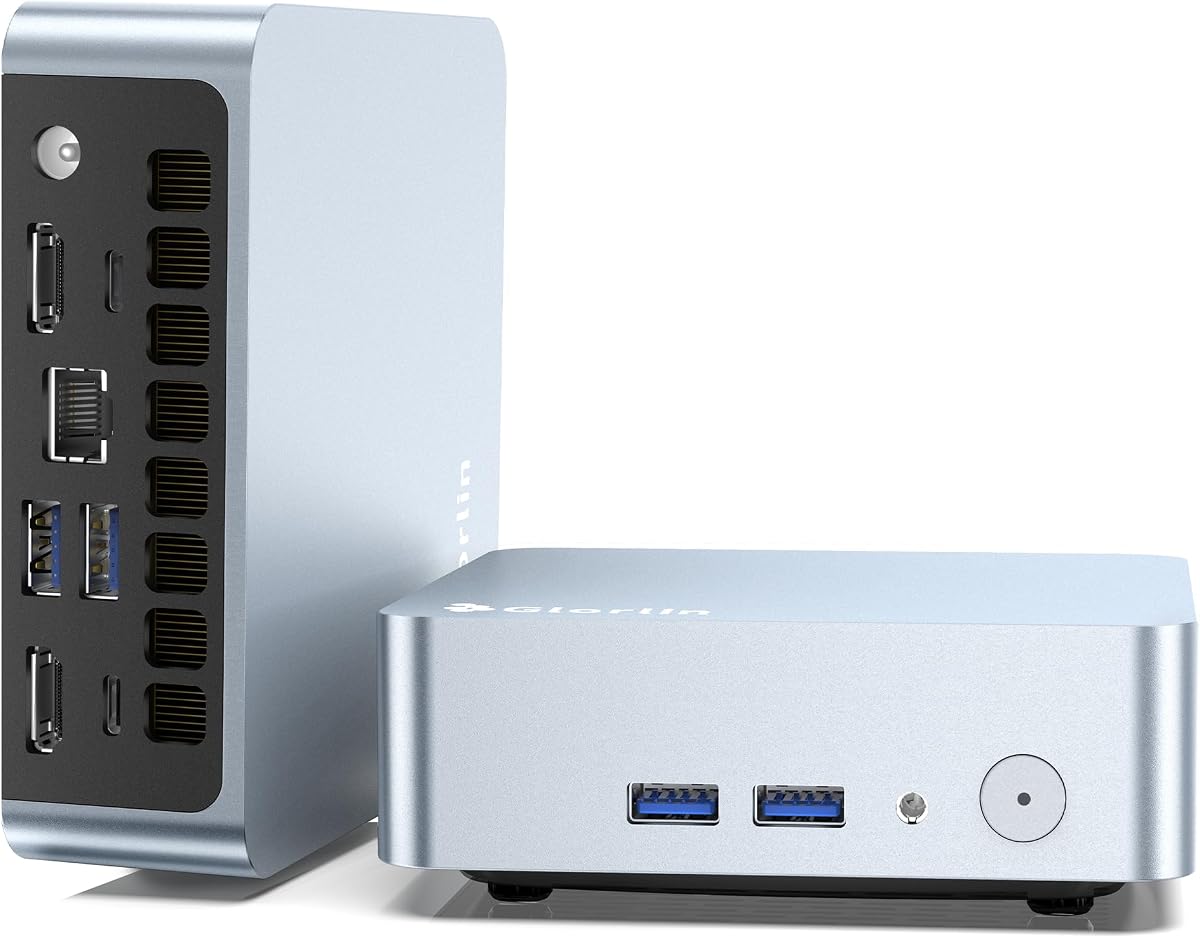
The Glorlin Mini PC is built around a Ryzen 5 3500U with four cores, eight threads, and boost speeds up to 3.7GHz. The supplied information states that it is intended for daily computing, browsing, business tasks, and media streaming, and no published customer rating was provided. Its main attraction is the unusually flexible display arrangement for a compact system.
We may earn a commission when you buy through this link, at no additional cost to you.
It includes two HDMI ports with support for 4K at 60Hz, as well as a full-featured Type-C 3.2 port carrying DisplayPort, data, and power delivery. Together, those connections allow up to three high-resolution screens. The two native HDMI outputs satisfy the central dual-display requirement, while Type-C can serve a third monitor or provide a convenient single-cable option depending on the display and dock.
Memory starts at 8GB DDR4 and can expand to 32GB, while a 256GB NVMe SSD provides fast storage. Wi-Fi 6, Bluetooth 5.3, two USB 3.2 ports, and two USB 2.0 ports cover common accessories. The included Windows 11 Pro installation is another practical benefit for buyers who want to begin quickly, although the included storage may be restrictive after installing large applications and media libraries.
The Glorlin is a sensible choice for a power-user desk with two monitors and a possible third display, particularly when USB-C docking is already part of the setup. It is less attractive for buyers who cannot perform a memory upgrade or need a larger initial drive. For basic productivity and streaming, however, the processor, native dual-HDMI layout, and Type-C display option form a capable package.
Two HDMI outputs provide a familiar way to connect the main monitors, while the full-featured Type-C port can provide display flexibility through DisplayPort Alt Mode. This is helpful for users who already use USB-C monitors or docks.
The four-core, eight-thread Ryzen 5 3500U handles office applications, browsing, communication, and media work efficiently. Its stated low power range also suits a compact desktop expected to run for extended periods.
We may earn a commission when you buy through this link, at no additional cost to you.
The GMKtec G10 has a 4.2 customer rating and stands out for its combination of 16GB DDR4 memory and a 1TB SSD. The Ryzen 5 3500U processor has four cores, eight threads, a 2.1GHz base frequency, and a boost frequency of 3.7GHz. That configuration is appropriate for office work, communication, browsing, casual gaming, and media editing tasks that do not demand workstation-class performance.
We may earn a commission when you buy through this link, at no additional cost to you.
Storage is the G10's defining strength. It includes dual M.2 2280 PCIe 3.0 slots and supports a stated total capacity of up to 16TB, while the included 1TB drive reduces the likelihood of running out of room for a large application library, media collection, or project files. Its 16GB SO-DIMM memory can also be expanded to 64GB, offering more flexibility than systems with permanently attached LPDDR memory.
For displays, the system can connect three screens through HDMI 2.1 TMDS, DisplayPort 1.4, and a full-function Type-C connection. The supplied information does not specify two native HDMI outputs, so buyers who require that exact physical layout should verify the current connector configuration. The model does include 2.5GbE Ethernet, dual USB 3.2, USB 2.0, a 3.5mm audio jack, Wi-Fi 5, and Bluetooth 5.0.
The G10 is a good recommendation for users who want substantial storage and memory without moving to the latest processor generation. Adjustable TDP settings from 12W to 35W provide some control over power use and performance. It is less compelling for buyers prioritizing current wireless standards or a guaranteed pair of HDMI sockets, but for local file-heavy work and expandable storage, it remains a well-balanced compact system.
The included 1TB SSD provides more room for applications, large work files, and media than the smaller drives in several competing systems. Dual M.2 slots allow additional expansion without relying on external drives for routine storage.
Upgradable DDR4 SO-DIMMs make it possible to increase memory as workloads become more demanding. The configurable 12W to 35W processor range offers a balance between efficient everyday operation and higher sustained performance.
We may earn a commission when you buy through this link, at no additional cost to you.
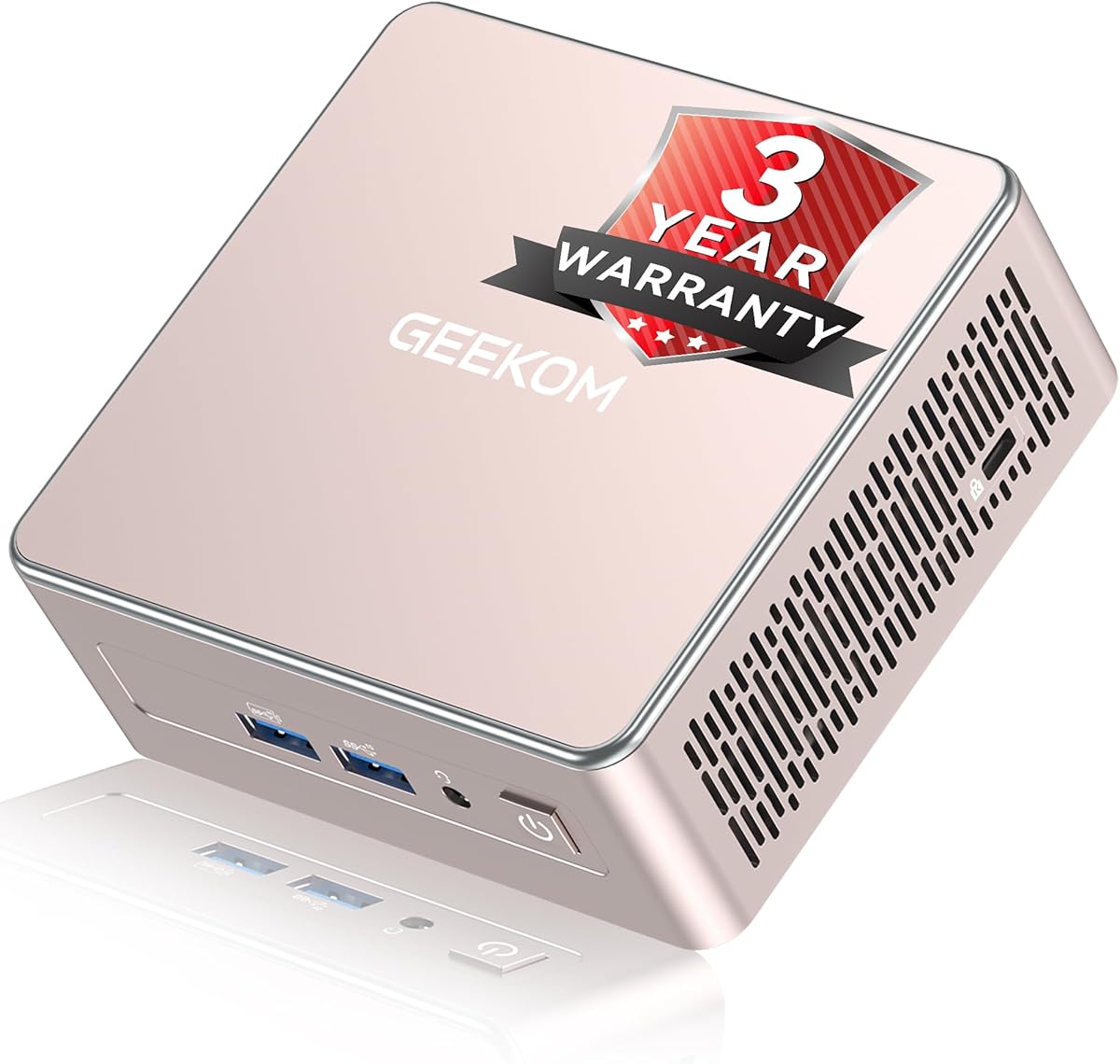
The GEEKOM A5 2027 Edition has a 4.5 customer rating and combines a Ryzen 7 7730U processor with support for up to four displays. Its eight cores and sixteen threads provide ample capacity for office applications, numerous browser tabs, spreadsheets, remote learning, and more demanding multitasking. The 15W processor is designed to balance productivity with a compact, energy-conscious footprint.
We may earn a commission when you buy through this link, at no additional cost to you.
The A5 has two native HDMI outputs, satisfying the primary search requirement, plus two USB-C ports that can carry display signals. The system therefore supports up to four displays in total and can provide up to 8K output through USB-C. That makes it especially attractive for analysts, designers, traders, programmers, and productivity users who want a wide desktop without a large tower.
Its 16GB RAM and 256GB PCIe NVMe SSD form a solid starting configuration. Crucially, the dual-slot DDR4 memory is upgradeable to 64GB. Storage can also expand through an M.2 drive supporting up to 4TB, an additional M.2 2242 slot, and a 2.5-inch hard-drive bay, producing a stated total capacity of up to 10TB. Wi-Fi 6, Bluetooth 5.4, 2.5GbE Ethernet, an SD card reader, and remote-management features round out the platform.
The A5 is a strong recommendation for a compact workstation where multi-screen output and processor headroom are more important than having a very large initial SSD. Its reinforced metal frame, IceBlast 3.0 cooling system, vibration-damping feet, and stated reliability testing are useful for long deployments. The 0.6L enclosure also makes it easy to place behind a monitor or in a crowded workstation area.
Dual HDMI and dual USB-C outputs make the A5 one of the strongest models here for command centers, trading layouts, creative timelines, and productivity dashboards. USB-C display support also simplifies compatible monitor and dock arrangements.
Replaceable DDR4 memory avoids the upgrade limitation of many soldered LPDDR systems. Multiple storage paths add further flexibility, allowing a larger NVMe drive and secondary storage to support a growing library of files, media, or project data.
We may earn a commission when you buy through this link, at no additional cost to you.
This GMKtec M8 configuration shares the Ryzen PRO 6650H platform found in another highly capable model, but the supplied listing provides a shorter product title and does not include a published customer rating. The six-core, twelve-thread processor reaches up to 4.5GHz, giving it strong multitasking performance for a compact system.
We may earn a commission when you buy through this link, at no additional cost to you.
Integrated Radeon 660M graphics with 12 compute units are suitable for 4K media playback, mainstream gaming, and video editing. The system includes 16GB of LPDDR5 6400 MT/s memory and a 512GB NVMe SSD. Two M.2 2280 slots provide a stated combined maximum of 8TB, and an external GPU can be connected through OCuLink for workloads that exceed integrated graphics.
Connectivity is designed for serious users. Dual 2.5GbE ports support link aggregation, virtualization, and home-server configurations, while Wi-Fi 6E provides current wireless networking. The system supports up to three displays through HDMI 2.0, DisplayPort 1.4, and USB4 with DisplayPort. As a result, it can operate a dual-screen workstation, but only one of the physical display connections is HDMI.
The M8 is a good recommendation for users who prioritize processing power, graphics, fast memory, and advanced networking over the convenience of a second HDMI socket. Quiet, Balanced, and Performance power modes help manage acoustics and energy use, while BIOS options include VRAM allocation, auto power-on, and Wake-on-LAN. The supplied information also describes a dual-fan cooling system with copper heat pipes for sustained performance.
The Radeon 660M provides a meaningful improvement over basic integrated graphics, making the system more comfortable for high-resolution media and mainstream interactive workloads. OCuLink creates an additional route when substantially more graphics performance is required.
Dual 2.5GbE ports, Wi-Fi 6E, auto power-on, and Wake-on-LAN make the M8 well suited to advanced home networks and remotely managed deployments. Performance modes allow administrators to tune the balance between noise and throughput.
We may earn a commission when you buy through this link, at no additional cost to you.
The GMKtec G11 has a 4.4 customer rating and is built around the Ryzen Embedded R2514, a four-core, eight-thread processor validated for continuous business, industrial, and professional operation. The supplied data positions it for 24/7 workloads such as office systems, NAS functions, servers, home entertainment, edge computing, and digital signage.
We may earn a commission when you buy through this link, at no additional cost to you.
Its most relevant display feature is a pair of HDMI 2.0 outputs, each capable of 4K@60Hz. A USB-C port with DisplayPort Alt Mode adds a third independent display, creating a useful arrangement for trading dashboards, editing interfaces, control rooms, and multi-panel signage. The system therefore meets the dual-HDMI requirement without adapters while extending to a third screen when needed.
The 16GB memory is configured as dual-channel 2x8GB DDR4, which can improve graphics and general responsiveness compared with a single-channel arrangement of the same total capacity. A 256GB PCIe M.2 SSD provides fast primary storage. Two 2.5GbE Ethernet ports, Wi-Fi 6E, Bluetooth 5.2, and several USB ports make the G11 particularly well equipped for network-oriented and always-on roles.
The G11 is a strong recommendation for technically inclined buyers building a compact server, firewall, NAS, virtualization environment, or multi-screen control station. Performance Mode can unlock a stated 35W operating profile through BIOS configuration, while the embedded processor is designed around sustained consistency. It is less convenient for everyday buyers who want effortless setup and more initial storage, but its hardware is well aligned with specialized, continuous-use deployments.
The Ryzen Embedded R2514 is validated for 24/7 business, industrial, and professional workloads. That makes the G11 more relevant to servers, edge systems, and monitoring stations than to ordinary office computers that spend much of their time powered off.
Two 2.5GbE ports provide a high-speed wired foundation, while two HDMI outputs and a DisplayPort-capable USB-C port support a three-screen workspace. Together, these features suit network appliances, control rooms, and multi-panel information displays.
We may earn a commission when you buy through this link, at no additional cost to you.
The right mini PC depends on more than the number of HDMI sockets. Processor capability, memory, storage, wireless standards, display resolution, cooling, and remote-management features should all match the intended workspace and workload.
A mini PC that supports two displays is not always equipped with two native HDMI ports. Some systems achieve multi-screen output through HDMI, DisplayPort, or USB-C, while others provide exactly two HDMI connectors. If cable simplicity and universal monitor compatibility are priorities, verify that the chassis includes two HDMI sockets and that both support the required resolution and refresh rate. For example, dual 4K@60Hz output is useful for productivity, whereas additional high-resolution or high-refresh displays may place different demands on the integrated graphics.
Choose two native HDMI ports when you want the cleanest setup and expect to use two displays without adapters. Mixed outputs can work equally well, but they may require DisplayPort or USB-C cables and compatible monitors.
Office browsing, email, video calls, and document editing do not require the same processing power as software development, large spreadsheets, content creation, virtualization, or gaming. A four-core processor such as the Celeron N5095 or Ryzen 5 3500U can provide a practical everyday experience, while six- and eight-core Ryzen 5 and Ryzen 7 platforms offer more headroom for multitasking and heavier applications. Integrated graphics performance also varies significantly and can determine whether video editing or mainstream gaming feels smooth.
Choose a current six-core or eight-core Ryzen processor for sustained multitasking or more demanding productivity. A lower-power four-core model is sufficient when the primary goal is browsing, communication, office software, and media playback.
Memory determines how comfortably the system handles browser tabs, applications, large files, and background services. A 16GB configuration is a sensible starting point for most contemporary productivity use. However, memory type matters when planning future expansion. Systems with dual SO-DIMM slots can be upgraded more easily, while soldered LPDDR memory may be permanently limited to the installed capacity. The reviewed products range from 8GB expandable DDR4 to 16GB LPDDR configurations and upgradable systems supporting substantially more memory.
Prefer at least 16GB for a new dual-screen work computer, especially if many browser-based applications are central to your work. Check for replaceable SO-DIMMs when future upgrades matter more than having a slim or highly integrated design.
An NVMe SSD generally provides the fastest system responsiveness, while SATA SSDs are more affordable and sufficient for general office use. Capacity should reflect the operating system, applications, local media, project files, and temporary data. A 256GB drive can fill quickly after software installation, whereas 512GB or 1TB provides more breathing room. Expansion options matter when the included drive is small: look for a second M.2 slot, a 2.5-inch bay, or support for larger-capacity drives compatible with the system.
Choose 512GB or more when installing substantial applications or keeping large media libraries on the computer. If starting with 256GB, confirm that a supported secondary drive can be installed without replacing the primary system drive.
Two HDMI ports are only the beginning; supported resolution and refresh rate determine what the displays can actually show. Several models in this guide support 4K at 60Hz, which is well suited to detailed documents, spreadsheets, financial charts, surveillance views, and high-resolution media. For high-refresh gaming, verify both the graphics capability and whether the mini PC's output configuration supports the intended combination of monitors. A third display through USB-C or DisplayPort can help when a compact workstation demands even more screen space.
Prioritize 4K@60Hz support for professional and media-heavy workspaces. For gaming, check the processor and integrated graphics as well as each output's refresh-rate limits before assuming two high-end monitors will run at their preferred settings.
Wi-Fi 5 remains adequate for many ordinary networks, but Wi-Fi 6 and Wi-Fi 6E offer newer capabilities, including access to the 6GHz band on compatible networks. Bluetooth versions also influence accessory compatibility and connection stability. A wired Ethernet port remains valuable for large file transfers, low-latency communication, and fixed installations. Mini PCs intended for network services may offer dual 2.5GbE ports, giving users options for link aggregation, virtual networking, firewall configurations, and segmented networks.
Choose Wi-Fi 6 or 6E for a modern wireless environment, and consider dual 2.5GbE for server, NAS, or advanced home-network roles. Use Gigabit Ethernet when a simple, stable wired connection is all that is required.
Compact processors still generate heat, and effective cooling is important for sustained performance and acceptable noise. Some systems offer multiple performance modes, allowing a quieter profile for routine work and a higher-power profile for demanding applications. Remote-management functions such as Wake-on-LAN, auto power-on, scheduled wake, and PXE boot can make a mini PC much easier to deploy in an office, kiosk, signage installation, or home-lab environment. BIOS controls and VRAM allocation can further benefit specialized users.
Look for selectable power modes and a documented cooling system if the computer will run continuously. For unattended or remotely managed installations, prioritize Wake-on-LAN and automatic startup features over raw processing power.
Some mini PCs arrive with an operating system preinstalled, while others are sold as barebone-like systems or require the buyer to install one. The stated configuration should be checked for the processor, memory, storage, wireless adapters, and operating system. Warranty coverage also varies by manufacturer and model, with some options offering multi-year protection and others providing shorter coverage. A clear warranty and accessible technical support can be particularly important for a compact computer intended for continuous operation.
Verify the full box contents before ordering, especially memory, storage, and operating-system inclusion. Compare warranty length and support terms when choosing between otherwise similar models, particularly for business or always-on installations.
Begin by identifying the correct display connections, plugging each monitor into a separate HDMI port, and connecting power, keyboard, mouse, and network hardware. Use the supplied guide to confirm the operating system and necessary drivers, then update the software before installing a large collection of applications. For a first boot, connect one display if troubleshooting is necessary, because dual-output problems can otherwise be confused with a single faulty monitor.
Give the compact enclosure adequate clearance around its vents and avoid placing it inside a closed cabinet unless the location is designed for proper airflow. Use the included or recommended power adapter, keep cables organized, and periodically check that storage and memory remain available. If the computer runs continuously, review temperature, fan noise, and update status regularly, and schedule data backups to an external drive or network location.
When adding a second M.2 drive, upgrading memory, or changing storage configuration, power the system down fully and follow the manufacturer's installation guidance. After any hardware change, confirm that the system boots, recognizes the new capacity, and drives both displays at the intended resolution. For networked deployments, update remote-access credentials, configure automatic startup where appropriate, and document the display and network configuration for easier maintenance.
The best choice depends on processor needs and whether two native HDMI ports are essential. The G3 Ultra, AK1PLUS, Getorli, Glorlin, and G11 explicitly include two HDMI outputs with 4K support. The GEEKOM A5 adds two USB-C display connections, while the M8 models use a mixed HDMI, DisplayPort, and USB4 arrangement. Select based on the rest of your workload and verify cable and monitor compatibility.
No. Having two HDMI connectors does not automatically mean both can drive 4K at the same time. Resolution and refresh-rate support depend on the processor, integrated graphics, output specifications, and operating-system drivers. The products in this guide that explicitly advertise dual 4K support are the G3 Ultra, AK1PLUS, Getorli, Glorlin, and G11, although final behavior should be confirmed with the seller and manufacturer.
Eight gigabytes can be adequate for light office work, a few browser tabs, video calls, and basic media use. It becomes restrictive when many applications, tabs, large spreadsheets, and communication tools remain open simultaneously. A 16GB configuration offers a more comfortable margin, while a model with replaceable DDR4 memory is easier to expand later.
A mini PC can replace a full-size office desktop for general productivity, browsing, communications, document work, and many media tasks. Its suitability depends mainly on processor power, memory, storage, software requirements, and monitor support. Users running demanding engineering tools, intensive 3D applications, specialized servers, or high-end games should choose hardware with more processing, graphics, memory, and cooling capacity.
HDMI is usually simpler because it is widely supported by monitors and commonly used in office setups. USB-C can be more convenient when the display supports DisplayPort Alt Mode, particularly if a single cable also handles data or charging. Compatibility must be checked because not every USB-C port on a mini PC carries a display signal, and a passive adapter may not support the desired resolution.
The GMKtec M8 models include an OCuLink port for a direct external-GPU connection. They also provide USB4, which can support compatible docks and displays. Other systems can sometimes use USB-C display output or an eGPU enclosure, but support depends on the processor, firmware, bandwidth, and operating system, so those combinations should be verified before purchase.
The BOSGAME E5 and GMKtec M8 are especially relevant because they include dual 2.5GbE Ethernet ports. The G11 also has dual high-speed wired networking and an embedded processor designed for continuous workloads. A NAS or firewall still needs suitable storage, the correct server operating system, dependable cooling, and a properly configured backup strategy, so a mini PC should not be treated as automatic data protection.
It depends on the system and workload. Mini PCs are compact and often efficient, and models designed for continuous operation can work well as servers or monitoring stations. Use a suitable power mode, maintain airflow, install updates promptly, monitor thermal behavior, and configure reliable backups. For a typical office computer, shutting it down when it will not be used may reduce unnecessary energy consumption and component activity.
The GEEKOM A5 2027 Edition is the most versatile choice for users who want two native HDMI ports and the option of two additional USB-C displays. The GMKtec M8 stands apart for high-end processing, LPDDR5 memory, dual 2.5GbE networking, OCuLink, and USB4. For the most direct dual-HDMI office setup, the G3 Ultra, AK1PLUS, Getorli, Glorlin, and G11 each provide two physical 4K-capable HDMI outputs.
Prioritize the connector arrangement that matches your monitors, then choose a processor with enough capacity for your actual applications. Memory, storage expansion, cooling, networking, and remote-management features become more important when the mini PC will serve as a media hub, server, signage controller, or permanent workstation. The GEEKOM A5 and GMKtec G11 are particularly strong for multi-screen or always-on roles, while the AK1PLUS keeps everyday productivity simple.
Before ordering, confirm the current processor, memory, storage, operating-system inclusion, wireless version, warranty, and exact port layout on the seller's listing. These mini PCs vary considerably in expansion capability even when they look similar, and current configurations can change over time. Recheck the specifications and display compatibility immediately before purchase to ensure the system fits your desk, monitors, and intended workload.